
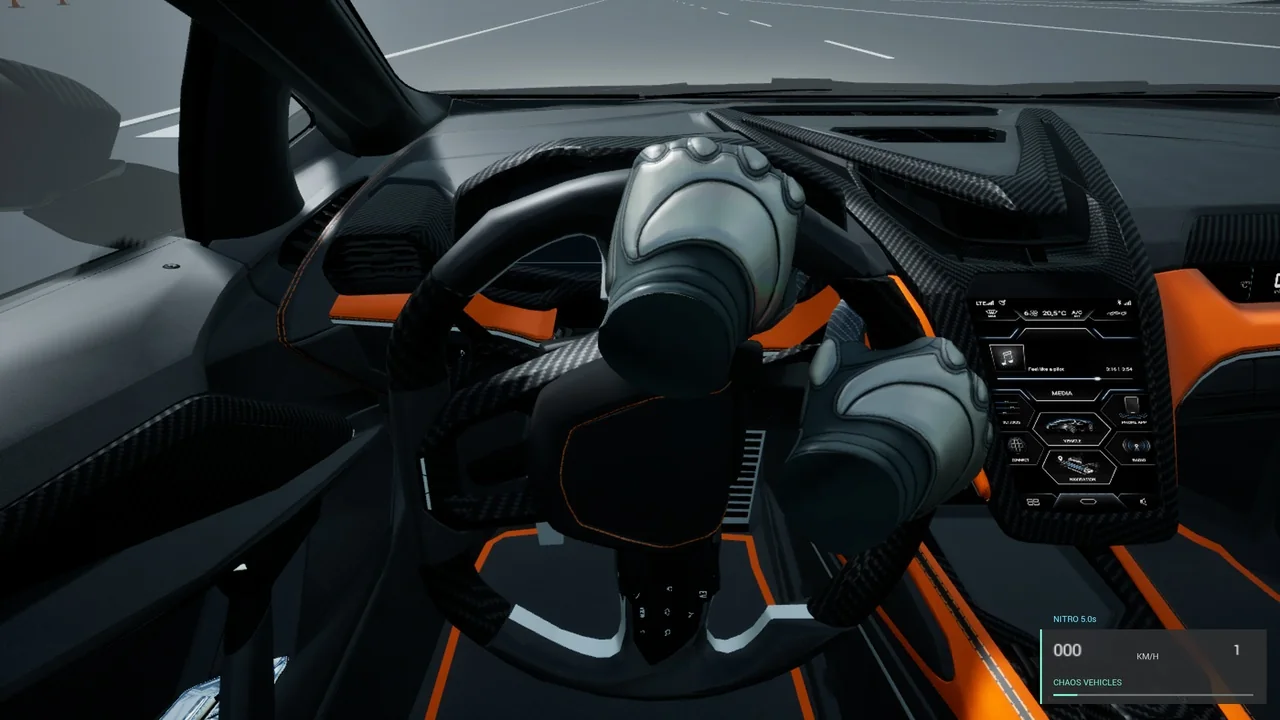
A convincing VR wheel needs more than a rotating mesh. Your seated viewpoint, the wheel's interaction frame and the hand grip all need to agree. Start with a working car, change one setting at a time, and test from the headset.
This walkthrough uses the Playframe VR Car Template for Unreal Engine 5.8. You need the plugin installed and an OpenXR headset with tracked controllers. The supplied demo supports desktop testing; physical grabbing needs VR Preview or a VR build.
01 / Start from the working demo.
Enable the plugin and its required built-in dependencies, then restart Unreal. Chaos Vehicles remains required even when you use the custom physics mode.
- Enable Show Plugin Content in the Content Browser.
- Open
VR Car Template Content / Demo / Maps / L_CarPlayground. - Press Play to check the default vehicle first. The map uses
BP_CarGameMode,BP_SportsCarandCarPlayerController. - Create a child Blueprint of
BP_SportsCarin your own project. Duplicate the handling and presentation Data Assets and assign the copies to your car. Make changes there.
The supplied game mode configures its input automatically. You do not need to change project-wide input classes or add Default Mapping Context entries for this path.
02 / Put the driver in the right place.
Select VRControls in your child Blueprint and adjust Seat Eye Position. This position is in chassis space, in centimetres: +X is forward, +Y is right and +Z is up.
Connect the headset before starting Unreal, choose VR Preview, sit comfortably and look forward. Press A while stopped to recenter. The right stick's vertical axis can adjust seated height while stopped.
Adjusting the desktop CockpitCamera does not change VR recentering. Use Seat Eye Position for the headset, then test the same comfortable sitting position after each change.
03 / Match the interaction to the rim.
For a replacement skeletal mesh, set the Steering Bone in your Presentation asset. Orient Steering Frame Rotation so local X runs along the steering shaft and local Y/Z span the rim. The visible wheel and VR interaction use this frame.
| VRControls setting | What to adjust |
|---|---|
| Wheel Radius Cm | Match the radius of the visible rim, rather than its diameter. |
| Grab Tolerance Cm | How close a hand must be to engage a grip. |
| Wheel Lock Degrees | Maximum steering-wheel rotation in each direction. |
Max Steer Degrees in the Handling asset controls the front road wheels. It is a different setting from the rotation of the wheel in your hands.
04 / Make the grip look natural.
Bring a controller-driven hand near the rim and squeeze its grip. Move either or both gripped hands around the wheel to steer. Keep the supplied hand component class when using the included hands.
- Grip Lift Degrees moves the neutral left/right grip positions around the rim.
- Grip Palm Tilt Degrees adjusts the closed palm's angle against the wheel.
- Grip Depth Offset Cm moves the hand into or out of the rim.
Change one parameter, restart Play and inspect both hands at centre and near full lock. Do not use a large grab tolerance to hide an incorrectly aligned wheel frame.
If you replace the hands, retarget to the supplied Epic mannequin XR bone convention or provide a compatible Animation Blueprint and expected joints. Arbitrary hand rigs need additional integration; swapping only the visible mesh is not sufficient.
05 / Test the whole interaction.
- At rest, grab with one hand, then both. Turn left and right and check grip alignment.
- Use the right trigger to accelerate and the left trigger to brake, then reverse. Test at low speed first.
- Release and grab again. Check both Chaos and custom physics modes; Y switches modes on Quest Touch.
- Test recentering while stopped and recovery after tracking loss. Tracking loss or lost VR focus releases grips and applies braking.
- Let both triggers return to neutral after recentering or tracking recovery. Re-establish tracking and deliberately grab again.
Finally test in a packaged build on your target headset. PCVR and standalone Quest have different rendering budgets, and a good desktop result does not establish standalone performance.
Try the wheel before you build.
The car page includes the Windows and Quest demos, actual footage, the full customization guide and the Fab listing.
Explore the VR Car Template See the full collectionBased on the VR Car Template User and Customization Guide, version 1.0.0, sections 1–4 and 7–9. Read the complete guide.